 byCreativeApps
Quick Lorem
Placeholder text, without the busywork.
Add placeholder text to your Canva designs. Keep your attention on the layout, not on filling the blank space.
Open in CanvaQuick Lorem in action.
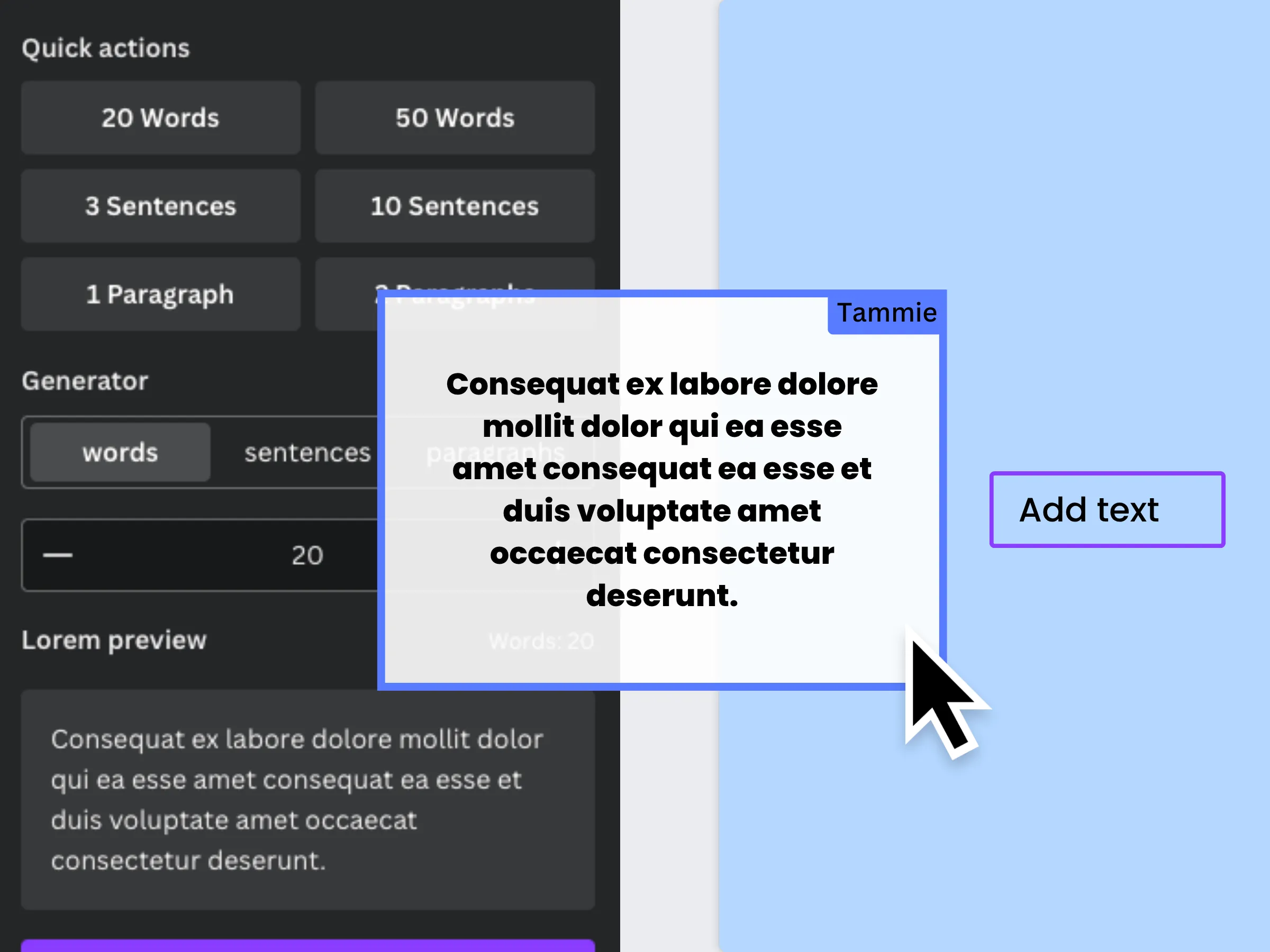
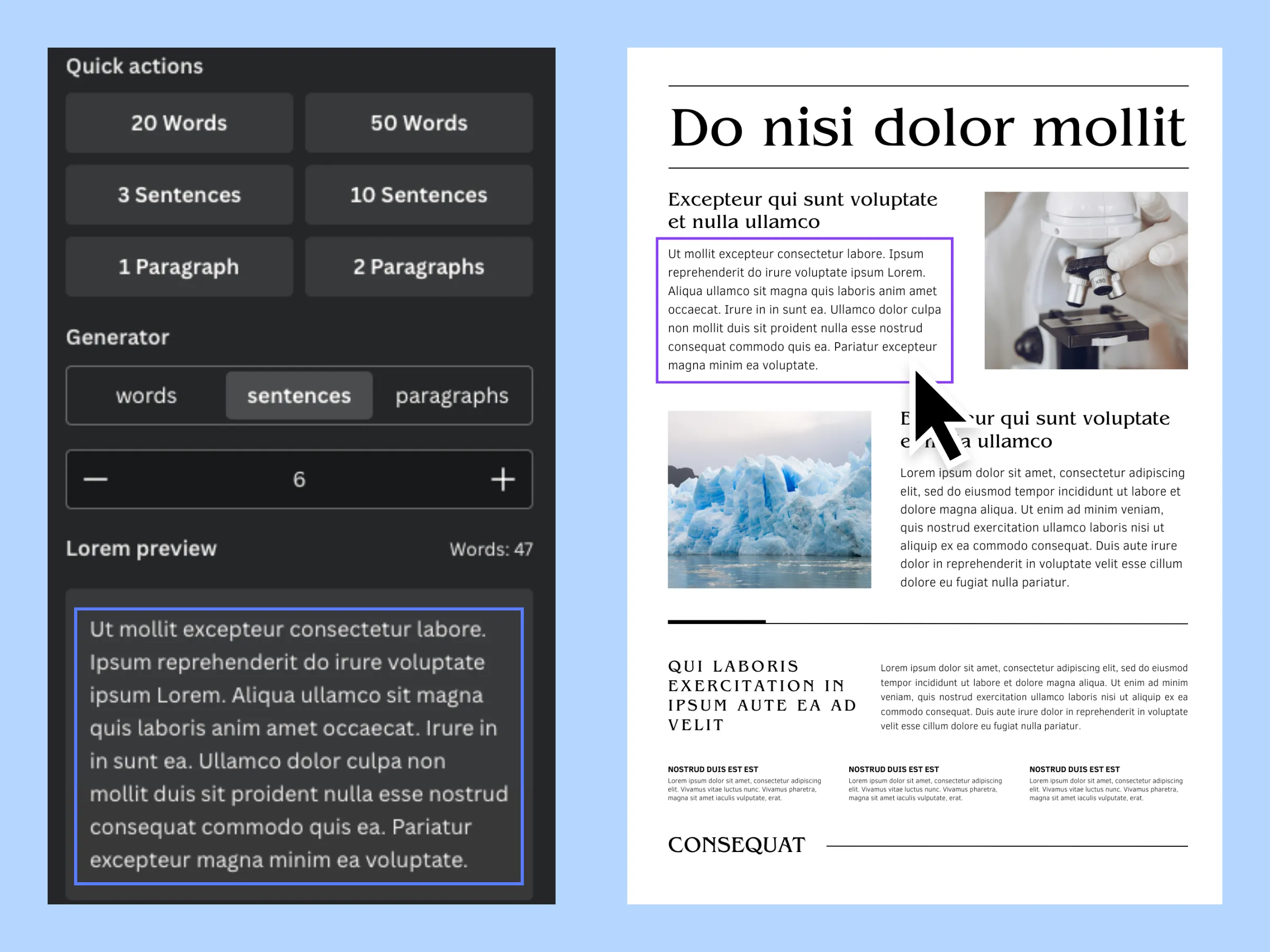
Text that fits your design.
Words, sentences or paragraphs
Choose the kind of placeholder text and the amount you need for your layout.
Quick options
Generate text with preset amounts or customize its length.
Preview before adding
Review the generated text in the app panel before adding it to your design.
Straight into Canva
Insert the result with “Add text”. When your design supports it, you can also drag text from the preview.
How to use Quick Lorem
Open the app
Find Quick Lorem in Canva’s apps or use the “Open in Canva” button on this page.
Choose how much text you need
Use a quick option or select words, sentences or paragraphs and adjust the amount.
Generate and review
Generate your placeholder text and check the result in the preview.
Add it to your design
Click “Add text” to insert it on the canvas and continue working on your layout.
For when the design comes before the copy.
Web and mobile mockups
Fill wireframes and prototypes while exploring how content should be arranged.
Marketing materials
Try out the hierarchy of headlines and text blocks before the final copy is ready.
Social media posts
Check how text fits into the composition of a post.
Shape the design. The final copy can come later.
Open in Canva